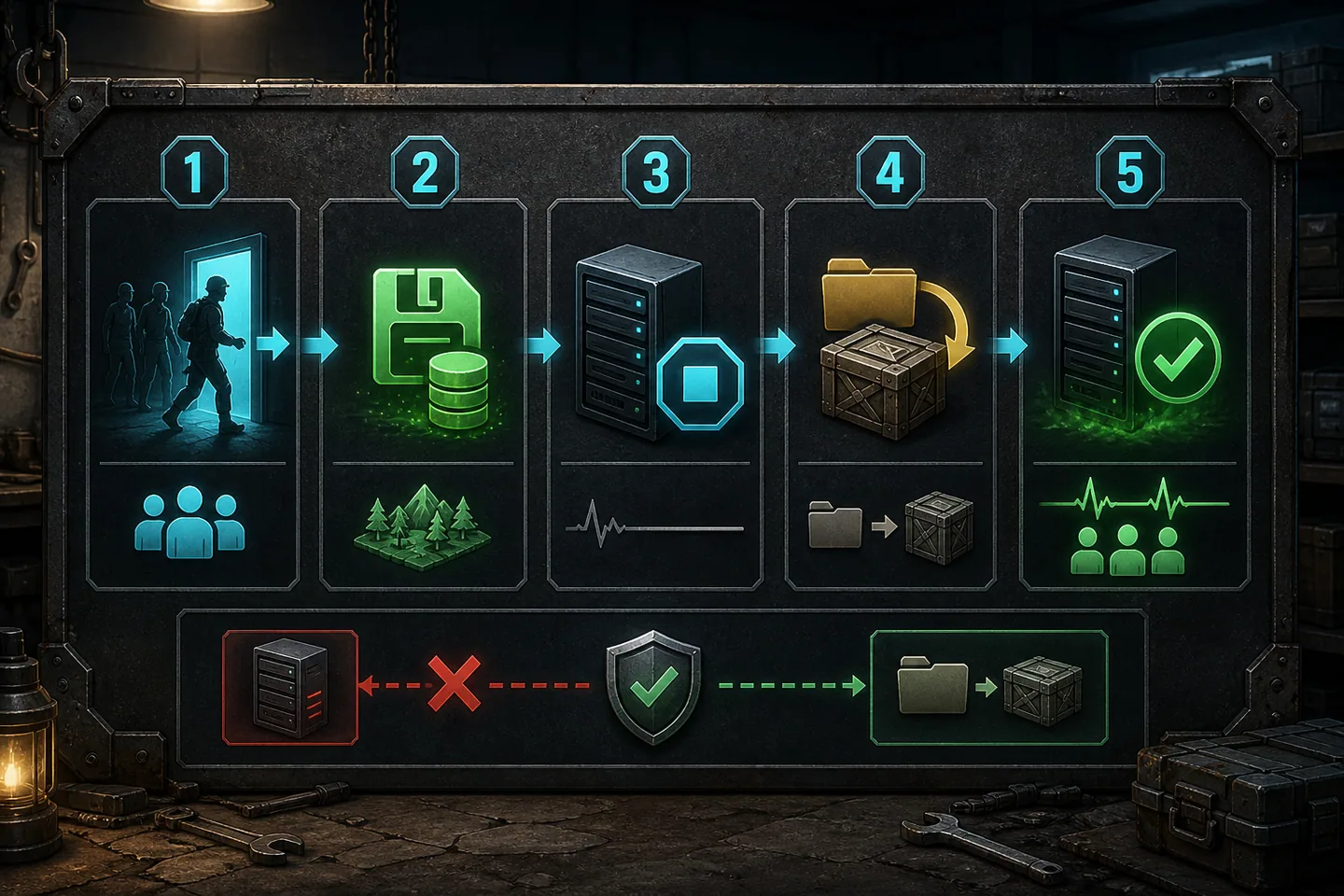
An ASA server update is a maintenance event, not a command to run blindly whenever Steam reports a new client build. The world process may have unsaved progress, players may be online, mods may also be changing, and a new binary cannot replace the process already running in memory. A safe update therefore has a clear order: notify, save, stop, back up, update, start and verify.
SteamCMD installs and updates the dedicated server application with app ID 2430930. It does not prove that your save is healthy, that mods are compatible or that the restarted process loaded the new files. Those checks belong in the procedure rather than being assumed because app_update printed success.

1. Prepare players and capture a recovery point
Announce the maintenance window before stopping a public server. Ask players to leave risky activities and avoid beginning boss fights, transfers or breeding actions immediately before shutdown. Trigger a world save using an authorized admin method, wait for it to complete, then stop the server cleanly. Killing the process first can discard progress since the last save and makes every later problem harder to separate from an unclean shutdown.
Copy the active world save, tribe and player data, GameUserSettings.ini, Game.ini, launch script and mod list to a dated backup outside the installation directory. A SteamCMD validation checks program files, not the integrity of your only world. If an update changes data in a way that an older build cannot read, a pre-update backup is the practical route back.
2. Run SteamCMD against the correct directory
Use force_install_dir with the same directory that contains the server you actually start. Administrators sometimes update a second copy while the production batch file points elsewhere, then wonder why the advertised build did not change. Confirm the path before running app_update 2430930. Anonymous login normally works for the dedicated application, although Steam service load can occasionally delay downloads.
Use validate when files are missing, corrupted or the first update attempt behaves unexpectedly. Validation reads more data and can take longer, so it is not required for every routine patch. Keep SteamCMD output in a maintenance log and treat a network error as a failed update rather than starting a partly written installation without inspection.
steamcmd +force_install_dir C:\arkserver +login anonymous +app_update 2430930 +quit
3. Start once and verify the advertised build
Start the normal launch script after SteamCMD exits successfully. Watch the console until the expected map and save are loaded. Confirm that the session advertises the new build in the server browser and that a matching client can join. Seeing new files on disk is not enough because an old server process may still be running or a service wrapper may launch a different installation directory.
Check a low-risk part of the world after joining: survivor identity, tribe membership, a familiar structure and one stored creature. Review logs for repeated warnings or mod failures. Keep the maintenance window open long enough to catch immediate crashes instead of declaring success the moment the name appears online.
4. Diagnose client and server version mismatch
If clients report a version mismatch, compare the server's advertised build with the current client rather than repeatedly restarting. Run SteamCMD again only after confirming the install directory and that no update process failed. A platform can receive a client update on a different schedule, so a short compatibility delay may affect cross-platform groups even when the server administrator completed the correct procedure.
For a modded server, separate the base-game build from mod versions. A base update may be complete while a required mod package is unavailable, stale or incompatible. Test on a copy before removing a content mod from production, because loading a save without that mod can delete dependent structures or creatures. Restore both save and mod state together when rolling back.
5. Automate checks, not unsafe restarts
Automation can check for a new build, announce downtime, save, stop, update and start during a maintenance window. It should also stop when SteamCMD fails, preserve logs and avoid launching two server processes. A script that updates every time it starts can be convenient, but it also turns a temporary Steam outage into unexpected downtime if it has no failure path.
Schedule backups independently from program updates. Keep several generations because the newest backup may already contain a problem discovered later. After each successful maintenance event, record old build, new build, update time, mod changes and verification result. That small history is more useful during the next incident than relying on memory.
6. Roll back only with a matching backup
Do not assume an older executable can safely open a world already saved by a newer build. If a patch must be rolled back, restore the pre-update world and configuration along with the compatible program and mod files. Keep the failed updated world separately in case a corrected release can open it later. Never overwrite both recovery paths while experimenting.
For most routine issues, fixing the new installation or waiting for a compatible mod is safer than forcing a binary rollback. Communicate clearly with players and avoid repeated starts against the production save. Controlled maintenance protects progression, which is the part of the server that SteamCMD cannot redownload for you.
Common questions
Frequently asked questions
Can SteamCMD update the server while players are online?
Do not rely on that. Save and stop the running process first so files are not in use and player progress has a clear recovery point.
Should every update use validate?
No. Use validation for the first install, suspected corruption or a failed update. Routine app_update is normally enough.
Why is the old build still advertised?
Check for an old process and confirm that SteamCMD updated the same directory used by the launch script or service.