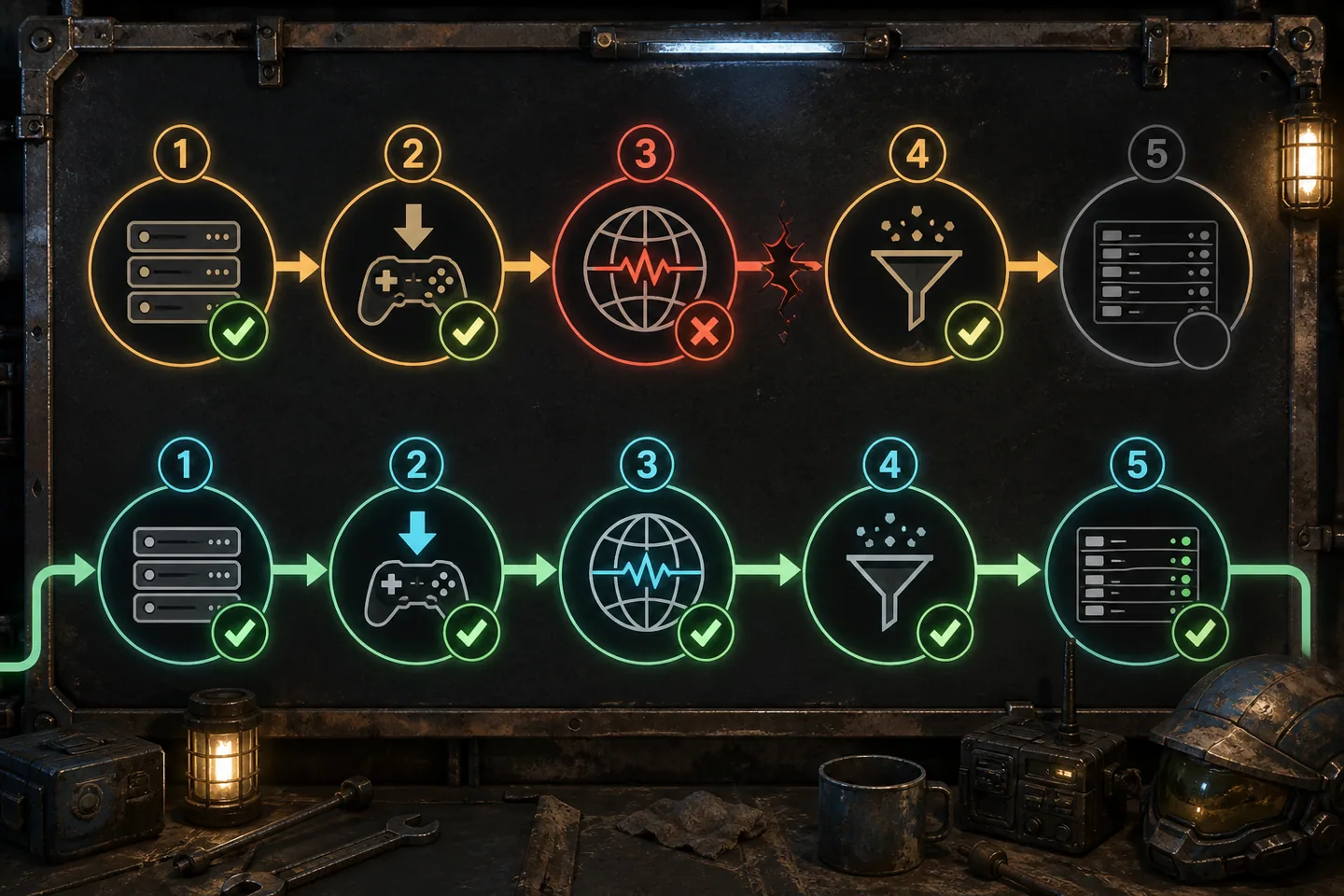
A missing ASA server does not automatically mean the machine is offline. The server can be running but filtered out, loading a different map, advertising an unexpected name, using a different build or failing to register its session. Reinstalling the game before identifying which layer failed usually wastes time and can destroy useful logs.
Work from the inside out. First prove that the server process completed startup and created its save. Next confirm the exact name and category in the browser. Only then investigate firewall, router and public network reachability. This sequence keeps a simple search-filter problem from becoming an unnecessary network project.
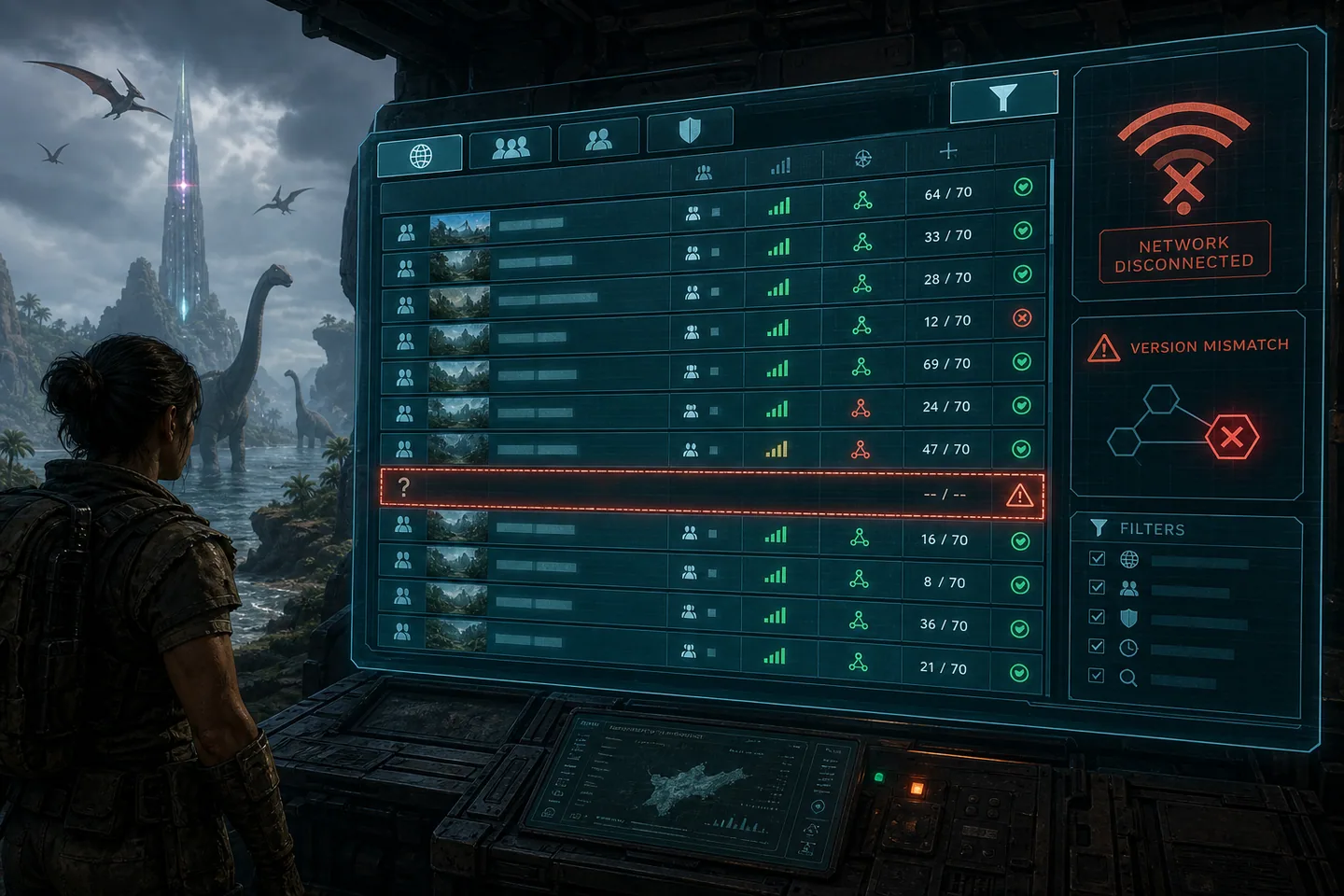
1. Confirm the process reached a usable state
Open the server console or log and look beyond the fact that the process exists. A server may remain open while downloading content, loading a large save or repeatedly failing during startup. Confirm that the expected map loaded, the session name is correct and the Saved directory contains recent files. If the process exits, repair that error before changing any browser filter or router setting.
Check available memory and disk space, especially after adding a map or several large mods. Restore the last known working launch command if the failure began after editing it. Keep ServerAdminPassword in the proper position and verify ASA's -port syntax. A single misplaced delimiter can change how later arguments are parsed without producing an obvious message for a new administrator.
2. Clear every in-game browser filter
Search for a distinctive part of the exact session name, then clear map, mode and password filters. Select Official for an official session and Unofficial for a community or self-hosted session. If the server uses mods, make sure the browser is not restricted to sessions without mods. A saved filter from an earlier search can make a healthy server disappear even though another player can see it.
Do not paste an IP address into a field labeled server name. The browser search matches the advertised session name, not the direct address. Copy the name from the launch command or hosting panel. If a server has just restarted, allow time for world loading and session advertisement, then refresh. Repeatedly changing settings during that window resets your diagnosis.
3. Compare client, server and mod versions
An outdated server can disappear from compatible results or reject joining after it appears. Stop the server, update application 2430930 with SteamCMD and restart it. Do not update while the world process is still writing. If the client updated recently, compare the advertised build after restart instead of assuming an old process picked up files placed on disk.
For modded sessions, allow the server to obtain current mod packages and verify that required projects still support the map and game version. One failed or removed mod can interrupt startup before the session advertises. Roll back the last mod-list change or test with a copy of the save rather than removing content blindly from the only production world.
4. Test from the same network
A local test tells you whether the game service and host firewall work before the router is involved. Search the name from another device on the LAN when possible. If local players cannot find or join it, inspect the server's listening ports and Windows Firewall rules. Port forwarding cannot repair a process that never listened locally.
If local joining works but remote joining fails, the server software is probably healthy and attention can move to the router, public address and internet provider. This division is valuable because changing INI settings will not solve a missing public route, while changing a router will not solve a server that crashes during map loading.
5. Check firewall, forwarding and CGNAT
Match firewall and router rules to the exact game and query ports in the launch command. Forward them to the host's reserved local IP, not to the router itself or an address that later changes. Avoid ranges wider than required. After correcting rules, restart the server and test with a player on a separate internet connection because some routers cannot test their own public address internally.
Compare the router's WAN address with the public address reported by an external service. A private or carrier-grade NAT address indicates that inbound traffic may stop at the provider before reaching your router. In that situation, ask the provider about a public IPv4 address, use a suitable hosting service, or choose a networking solution designed for inbound access rather than endlessly editing the same forwarding rule.
6. Change one layer at a time
Keep a short test record: process started, local visibility, local join, external visibility and external join. Write down the time and result after each change. This makes intermittent issues visible and prevents two administrators from undoing each other's work. When the session appears, preserve the exact launch command and export the firewall and router configuration for recovery.
If the entire ASA browser is empty for multiple players and platforms, check the broader online service status before rebuilding one server. A service outage is different from a server outage. ArkToolbox marks failed collector observations as unknown rather than recording thousands of servers as down, and server owners should use the same caution when diagnosing a network-wide symptom.
Common questions
Frequently asked questions
How long should a restarted server take to appear?
There is no fixed guarantee. Wait until map loading completes, then allow the session service and browser time to refresh before changing settings again.
Should I search using IP:port?
Use the advertised session name in the in-game name search. A direct address belongs in a supported direct connection method, not a name filter.
Does opening ports make a crashed server visible?
No. The process must first complete startup and listen locally. Forwarding only carries external traffic to an already working host.